Music Visualizers · 8 min ·
How to Make a Music Visualizer Online for Free (2026 Guide)
Create a music visualizer online from your song and artwork, choose the right format, and export versions for YouTube and short-form video.
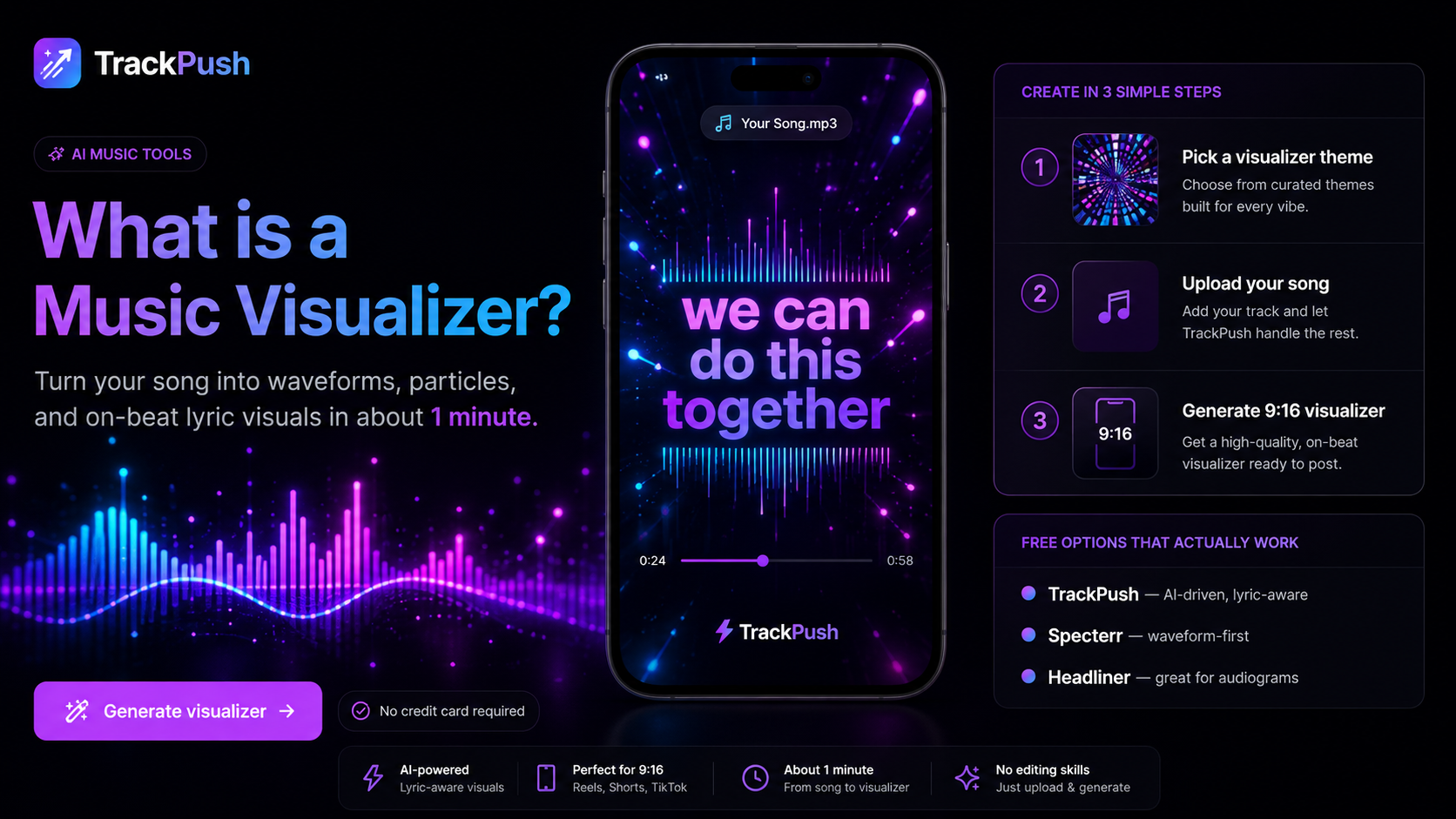
Make a music visualizer online without learning a complex editor
A music visualizer turns your audio into motion. Instead of uploading a static cover image, you can publish a video where a waveform, spectrum, ring, or other graphic responds to the song.
For independent artists, a visualizer is one of the fastest ways to create a complete video from assets you already have: the mastered track, cover art, artist name, and song title. You can use the result for a full YouTube upload or adapt it into shorter vertical clips for TikTok, Instagram Reels, and YouTube Shorts.
What you need
Prepare these basics before opening a visualizer maker:
- A finished audio file
- High-resolution album or single artwork
- Correct artist and song names
- Your release link or streaming call to action
- Optional lyrics, logo, release date, or credits
If you only have one image, that is enough. Follow the detailed workflow for turning album cover art into a music visualizer.
Step 1: choose where the video will be posted
Your destination determines the canvas.
- Use 1920 × 1080 for a standard landscape YouTube video.
- Use 1080 × 1920 for TikTok, Reels, and Shorts.
- Use 1080 × 1080 for a reusable square feed post.
- Use 1080 × 1350 for a portrait Instagram feed post.
Designing for the platform first prevents awkward cropping later. Keep the cover art, title, and strongest animation in the safe central area. The full music visualizer size guide includes a platform-by-platform comparison.
Step 2: choose a visualizer style
The two most common options are a spectrum and a waveform.
An audio spectrum divides sound into frequency bands. Bass, vocals, percussion, and higher frequencies make different bars move. It creates an energetic effect that works well for beat-driven music.
A waveform represents the overall signal as a line, ribbon, or circular shape. It is usually simpler and leaves more visual space for the cover, lyrics, or a release message.
Read audio spectrum vs waveform visualizer for a direct side-by-side comparison.
Step 3: build a clean layout
Choose one strong focal point. In most cases, that should be the cover art. Place the visualizer around, beneath, or beside it instead of covering the artwork.
A simple layout might include:
- Cover art in the middle
- Circular spectrum around the cover
- Artist name and song title below
- Short call to action near the bottom
- Subtle background made from a blurred version of the artwork
Do not add motion to every element. The audio-reactive animation should be easy to notice without making the screen feel chaotic.
Step 4: make the animation match the song
Use a stronger response for energetic choruses and a more restrained response for slower, intimate, or atmospheric tracks. Contrast also matters: the visualizer needs to remain visible against the background throughout the song.
Test the loudest and quietest sections. If the animation disappears during a verse or clips during the chorus, adjust the sensitivity before exporting.
Step 5: add readable text
Include the artist and track title for full-song uploads. For release promos, add one clear message such as “out now,” “listen everywhere,” or the release date.
Use large type, strong contrast, and short lines. View the draft at phone size. If the message requires zooming, it is too small.
Step 6: export and review
Before publishing, watch the complete export and confirm:
- Audio and motion stay synchronized
- The song is not cut off
- Artwork remains sharp
- Text is readable on a phone
- The visualizer is visible in both quiet and loud sections
- Important elements are not hidden by platform controls
- The final frame ends cleanly
For a full-length upload, follow our YouTube music visualizer tutorial. For phone-first platforms, use the vertical visualizer guide for TikTok, Reels, and Shorts.
What about Spotify Canvas?
Spotify Canvas is a short looping visual displayed inside Spotify’s mobile listening experience. A music visualizer is a conventional video file that can be published across platforms and may run for the full song.
They serve different parts of a release campaign. See Spotify Canvas vs music visualizer to decide which asset to make first.
How to get more value from one visualizer
Do not stop at a single upload. Reuse the visual system across the campaign:
- Full-song YouTube video
- Chorus teaser
- Release-date announcement
- Lyric excerpt
- Behind-the-song narration
- Milestone post
- Streaming-link or QR-code post
Create separate landscape and vertical layouts using the same colors, artwork, and type. This keeps the campaign consistent while fitting each platform correctly.
Create your visualizer with TrackPush
Open the TrackPush music visualizer maker, add your music and visual assets, and create a shareable visualizer without building a timeline from scratch. Start with the platform you care about most, test a short section, and then export the full version once the layout and motion feel right.