Music Visualizers · 7 min read ·
How to Make a Music Visualizer for YouTube
Turn a finished song and cover art into a polished YouTube visualizer without filming a full music video.
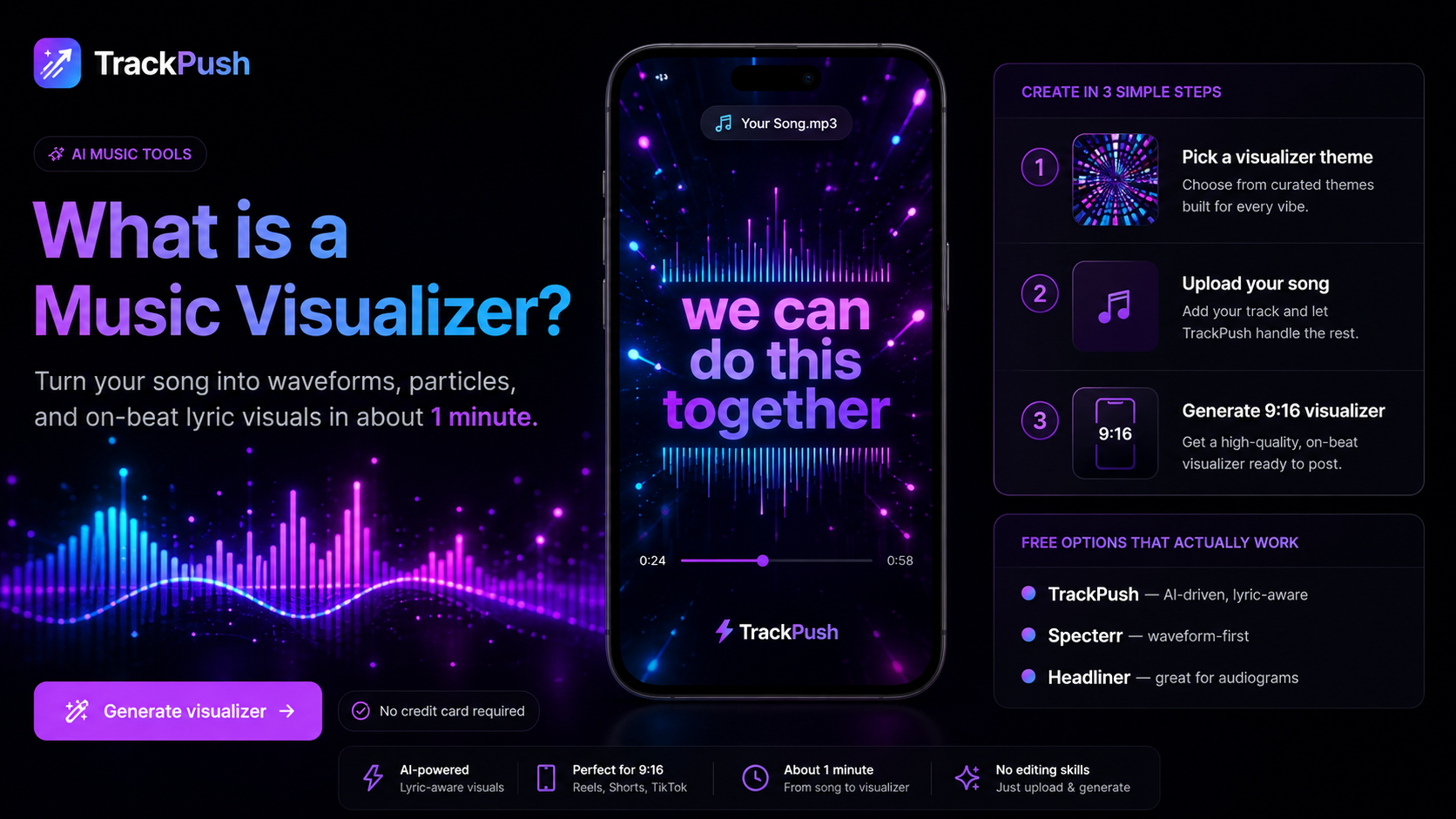
A YouTube music visualizer gives a finished song a watchable video without the budget, crew, or timeline of a traditional music video. It works for independent artists, producers, beatmakers, labels, remixes, instrumentals, and catalog releases.
The strongest visualizers do more than place a waveform over album art. They create movement that fits the song, preserve the artist's identity, and stay comfortable to watch for the length of the track.
Prepare the assets
Collect the final WAV or high-quality audio file, square cover art or a press image, the correct artist and song title, brand colors, and any rights-cleared background footage. Use the final master whenever possible. Replacing the audio later can change timing and create unnecessary rework.
Choose the right frame
Use a landscape 16:9 canvas for a normal full-song YouTube upload. Keep the title, artist name, waveform, and important artwork away from the outer edges so they remain readable on phones, computers, and televisions.
Make a separate 9:16 composition for YouTube Shorts. Do not just crop the landscape file. Reposition the artwork and type for the phone screen. See the music visualizer video size guide for a cross-platform plan.
Pick a style that fits the track
A waveform works well for vocals, acoustic music, and storytelling. A frequency spectrum communicates more energy for electronic music and beats. Radial movement can frame square cover art, while particles and light movement add atmosphere without covering the artwork.
The best style is not always the busiest. Read audio spectrum vs waveform visualizers before choosing.
Build a clear hierarchy
A viewer should understand the video in seconds. A simple order is:
- Cover art or hero image
- Artist and song title
- Audio-reactive element
- Small logo or release information
- Optional call to action
Do not force every credit and social handle onto the canvas. Put detailed credits and links in the YouTube description.
Test the quiet and loud sections
A design that looks balanced during the chorus may disappear in the intro or become chaotic at the drop. Preview both extremes. Confirm that the visualizer remains visible during soft sections, the movement feels connected to the music, and the title stays readable against every background.
Use restrained movement for long uploads. An effect that looks exciting for five seconds can become tiring across a four-minute song.
Create the visualizer with TrackPush
Open the TrackPush music visualizer maker, combine the song with cover art or a visual background, choose a treatment that matches the release, preview the complete composition, and export the YouTube-ready version.
Use the same art direction for teaser clips, but export separate vertical versions.
Package the upload
A practical YouTube title is:
Artist Name – Song Title (Official Visualizer)
Add a direct listening or smart link, song credits, artist channels, and copyright details to the description. Make a dedicated thumbnail rather than relying on a random video frame. The thumbnail and visualizer should look like one campaign.
Final checklist
- Final master is used
- Standard upload is 16:9
- Cover art is sharp at full screen
- Artist and title are correct
- Motion stays comfortable across the track
- Every visual asset is licensed
- Export plays from start to finish
- Thumbnail is readable at small size
- Streaming links and credits are ready
Next, create a vertical music visualizer for TikTok, Reels, and Shorts or learn how to turn album cover art into a visualizer.
Start with the TrackPush music visualizer maker.