Music Marketing · 6 min read ·
How to Make a Music Poster With a QR Code (In Under 60 Seconds)
Turn any album cover into a print-ready promo poster with a scannable smart link to your music — no design skills required.
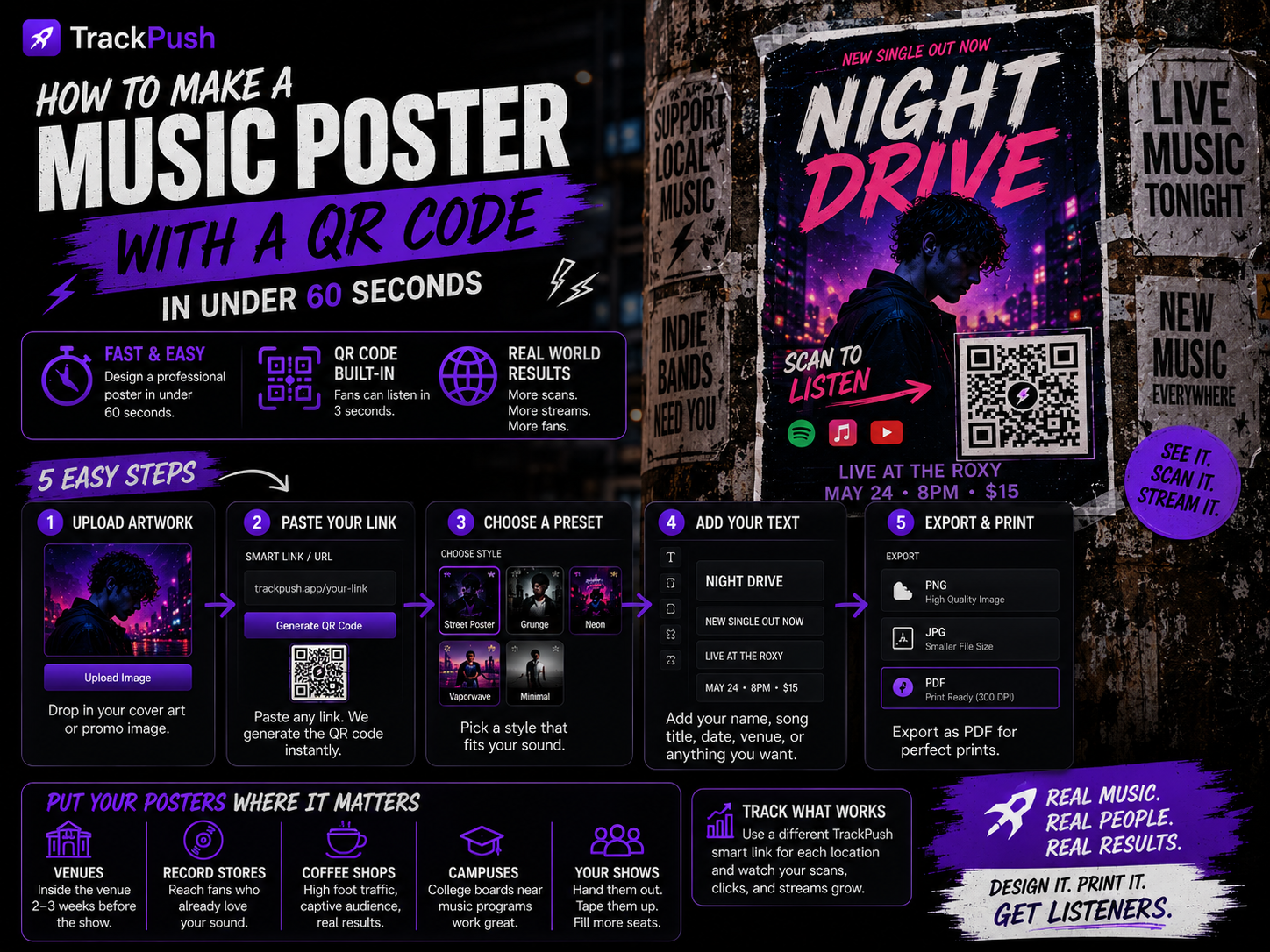
A great song deserves more than a feed post. A printed poster — taped to a venue wall, slipped into a record store, handed out at a show — puts your music in front of people who would never have scrolled past it. And with a QR code, a stranger can be listening to your track three seconds after they see your face.
This guide shows you how to make a professional music poster with a working QR code in under a minute using the TrackPush Poster Creator.
What you need
- An album cover, single artwork, or any promo image
- A smart link, Spotify URL, Apple Music URL, or YouTube Music URL for the song you're promoting
- A TrackPush account on Growth or PRO
That's it. No Photoshop. No QR-code generator browser tabs. No printer headaches.
Step 1 — Upload your artwork
Open the Poster Creator and drop in your cover art. The editor sets up a print-ready A4 or US Letter canvas at 300 DPI, so whatever you export will look sharp on real paper.
You can resize and reposition the image, crop it to bleed off the edges, or shrink it down and stack other elements around it. Tap Auto Center to snap it to the middle of the canvas.
Step 2 — Paste your smart link
Paste any URL — a TrackPush smart link, a Spotify track, an Apple Music album, a YouTube Music video, or your own landing page. The Poster Creator instantly generates a high-contrast QR code from it.
Drag it anywhere on the poster. Resize it. Rotate it. Drop the opacity if you want it to sit subtly in a corner, or blow it up large if you want scannability from across a room.
Tip: keep the QR code at least 2.5 cm / 1 inch wide on the printed poster. Anything smaller and phones struggle to scan it from a distance.
Step 3 — Pick a preset
If you want to skip the design work entirely, pick one of the built-in styles:
- Street Poster — bold, photocopied, wheatpaste energy
- Grunge — torn paper, distressed type, lo-fi colors
- Neon — saturated gradients and glow effects
- Vaporwave — pastel pinks, chrome type, retro grids
- Minimal — lots of white space, one font, no noise
Each preset wires up fonts, colors, and text layout for you. You can still tweak everything afterwards.
Step 4 — Add your text
Add the song title, your artist name, the release date, a tour leg, or a venue. Pick a font, change the color, rotate the layer, adjust opacity. Use text as a design element — not just a label.
Step 5 — Export and print
Export as:
- PNG for posting online
- JPG for smaller file sizes
- PDF for taking to a print shop
The PDF is sized exactly to A4 or US Letter with no scaling tricks, so what you see in the editor is what comes out of the printer. Your QR code prints in the exact position you placed it.
Where to put your posters
- Local venues, record stores, and coffee shops (ask first)
- College bulletin boards near music departments
- The merch table at your own shows — give them away
- Tape them inside your tour van and post the photo
- Bandcamp Friday — mail one with every order
Every scan is a listener you would not otherwise have had. Track which posters work best by using a different TrackPush smart link per location and watching the click data come in.
Ready to design yours?
Open the Poster Creator in your TrackPush dashboard, drop in your cover, paste your link, and you'll have a printable poster in less time than it takes to make a coffee.
Music Poster Promotion Hub
Build the rest of your campaign with these focused guides:
- How to make a Spotify poster with a QR code
- Album and single release poster design guide
- 15 music promotion poster ideas
- Music poster sizes for print and social media
- QR-code best practices for music posters
- Gig flyer design guide
- Street poster marketing playbook
Sign in and open the TrackPush Poster Creator to make your poster.