Music Marketing · 8 min read ·
How to Make a Spotify Poster With a QR Code
Create a printable Spotify promotion poster that sends every scan directly to your song, album, playlist, or artist page.
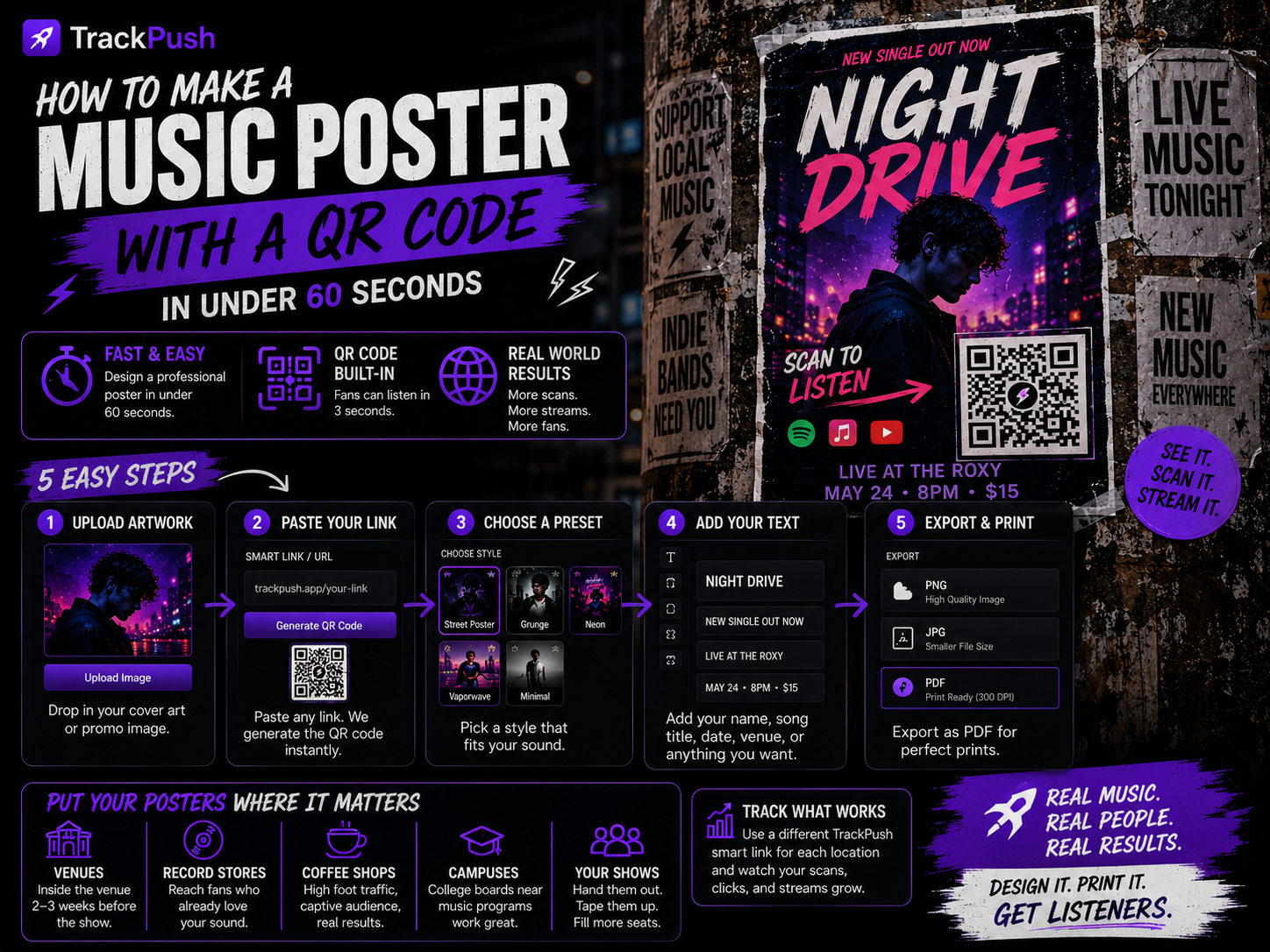
A Spotify poster can turn a hallway, merch table, record-store counter, or venue wall into a direct path to your music. The important part is not simply placing a code next to your artwork. The poster has to make somebody stop, understand what they will hear, and scan without struggling.
This guide explains how to build a Spotify poster with a scannable QR code, which Spotify link to use, and how to prepare the design for print.
Spotify Code or regular QR code?
Spotify offers its own scannable Spotify Codes for songs, albums, playlists, artists, and other content. They work well when the person scanning already knows to open Spotify's scanner. A standard QR code is usually easier for physical promotion because the normal camera app on most phones can open it.
For a poster in a public place, use a normal QR code that points to either:
- Your Spotify song or album
- Your Spotify artist profile
- A smart link containing Spotify, Apple Music, YouTube Music, and other services
- A campaign landing page you can update later
A smart link is usually the safest choice because not every listener uses Spotify. If the campaign is specifically asking people to save or stream on Spotify, use the direct Spotify link.
Step 1: copy the right Spotify link
Open the song, album, playlist, or artist profile in Spotify. Choose Share, then Copy link.
Match the destination to the campaign:
Campaign goal · Best link
Push a new single · The exact song
Promote a full release · The album or EP
Grow followers over time · Your artist profile
Share several platforms · A smart link
Promote a curated playlist · The playlist
Do not send a release poster to your general homepage if the poster promises one specific song. Each extra tap loses listeners.
Step 2: open the TrackPush Poster Creator
Sign in to TrackPush and open the Poster Creator. Start a new poster, upload the single artwork or press photo, and choose a print size.
For a fast design, use one image as the hero. Avoid building a collage unless the collage is already part of the release identity. The viewer should recognize the artwork when Spotify opens after the scan.
Step 3: add the Spotify link as a QR code
Paste the copied Spotify URL into the QR-code field. TrackPush generates the code and places it on the canvas.
Keep four rules in mind:
- Make the code at least 1 inch or 2.5 cm wide on an A4 or US Letter poster.
- Leave an empty border around it.
- Use strong contrast between the code and its background.
- Do not stretch, crop, rotate, or cover the code.
Add a short call to action such as Scan to listen, Hear the new single, or Save it on Spotify. A code without context looks like decoration.
Step 4: organize the poster hierarchy
The viewer should understand the poster in this order:
- Artist name
- Release title or main promise
- Cover art or press image
- Scan call to action
- QR code
Release dates, credits, handles, and small-print information are secondary. If everything is large, nothing is important.
Step 5: test before printing
Export a draft and test the code from another phone. Test it on-screen, then print one copy at actual size and scan it from several distances and angles.
Check these details:
- The link opens the correct release
- The release is public in every target country
- The code scans in dim venue lighting
- No text or image touches the code's quiet zone
- The call to action is readable from several feet away
Never print a full batch before testing one physical copy.
Step 6: export for each placement
Use PDF for a print shop. Use a high-resolution PNG or JPG for digital sharing. A4 or US Letter works for coffee shops and bulletin boards; A3 works better in venues and high-traffic spaces.
If you post the same artwork to Instagram, make a separate social version. A print poster and a phone screen have different proportions, viewing distances, and text-size needs.
Where Spotify posters work best
- Merch tables and venue exits
- Record stores and rehearsal studios
- College music buildings and approved bulletin boards
- Download cards packed with vinyl, CDs, or merchandise
- Pop-up events and listening parties
- Counter cards near a point of sale
Always ask before placing a poster. A poster that has permission stays visible longer.
Track the campaign
If you can, use a different smart link or tagged landing-page URL for each location. That lets you compare scans from the venue, record store, college, and merch table instead of guessing which placement worked.
Continue building your poster campaign
- Make a music poster with a QR code
- Choose the right music poster size
- Check QR-code size and placement
- Explore music promotion poster ideas
- Design an album or single release poster
When you are ready, sign in and open the TrackPush Poster Creator to turn your artwork and Spotify link into a print-ready poster.