Music Marketing · 7 min read ·
The Gig Flyer Design Guide: How to Fill More Seats at Your Next Show
A practical playbook for designing show flyers that actually sell tickets — with QR codes, fonts, and layouts that work in print.
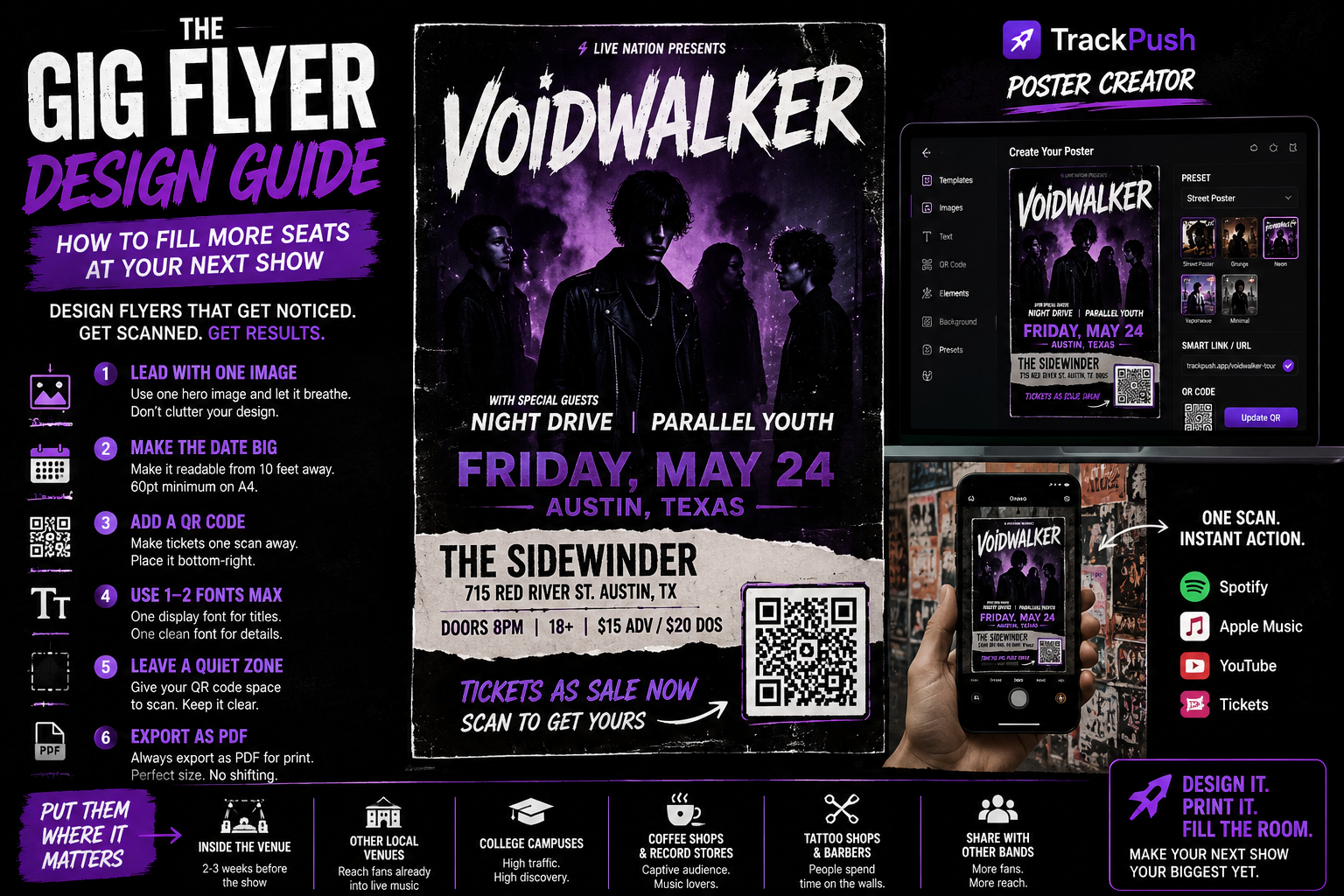
Most gig flyers fail for one of three reasons: nobody can read them from across the room, nobody knows when or where the show is, and nobody can buy a ticket without typing a URL into their phone.
This guide fixes all three. Here is how to design a gig flyer that actually puts butts in seats — and how to do it in the TrackPush Poster Creator without opening a design app.
1. Lead with one image, not five
The best flyers have one hero image and let it breathe. A band photo, a single cover, a graphic illustration — pick one and make it big. Stacking three photos and a sponsor logo splits the eye and makes the whole thing look amateur.
In the Poster Creator, upload your image, drag a corner to size it, and use Auto Center to lock it in place.
2. Make the date readable from 10 feet away
Print the date and venue in type that is at least 60pt on an A4 poster. If you have to squint at the editor preview to read it, nobody at the venue is going to read it either.
Stack the information in this order:
- Headliner name (largest)
- Support acts
- Date and city
- Venue name and ticket price
3. Put a QR code where the ticket link goes
This is the single highest-leverage change you can make to a gig flyer. Instead of writing "tickets at example.com/show", paste your ticket URL into the Poster Creator and drop the generated QR code in the bottom-right corner.
People at a venue will scan it. People walking past a coffee shop window will scan it. Your friend who took a photo of the flyer will scan it from their camera roll a week later.
Keep the QR code at least 2.5 cm / 1 inch wide so phones can lock onto it from arm's length.
4. Use one font family, two weights max
The fastest way to make a flyer look unprofessional is to pile on five fonts. Pick one display font for the headliner name and one clean sans for everything else. The Poster Creator's Minimal and Street Poster presets do this for you.
5. Leave a quiet zone around the QR
QR codes need a small margin of empty space around them to scan reliably. Do not push the code right up against the edge of the poster or layer text on top of it. The Poster Creator previews exactly what the printed result will look like — if it looks crowded on screen, it will fail in real life.
6. Export as PDF for print
PNG and JPG are fine for Instagram. For the print shop, always export as PDF. The Poster Creator outputs PDFs at the exact A4 or US Letter size with the QR code locked to the position you set, so the printer cannot accidentally scale or shift it.
7. Put them in the right places
- Inside the venue 2–3 weeks before the show
- At every other small venue in town
- On college campuses near music programs
- In coffee shops, record stores, and tattoo parlors
- In the hands of every band you are sharing the bill with
Each location can use a different TrackPush smart link, so you can see exactly which posters drove the most ticket clicks.
Start designing
Open the Poster Creator from your TrackPush dashboard, pick the Street Poster preset, and you can have a finished gig flyer in under five minutes.
More Music Poster Guides
- Make a music poster with a QR code
- Create a Spotify poster with a QR code
- Design an album release poster
- Check QR-code size and placement
- Choose the right poster dimensions
Ready to design? Sign in and open the TrackPush Poster Creator.