Suno Creator Guides · 9 min read ·
How to Make a Lyric Video for a Suno Song
Download your Suno audio, choose vertical visuals, correct the transcript, and export a synchronized lyric video for TikTok, Reels, or YouTube Shorts.
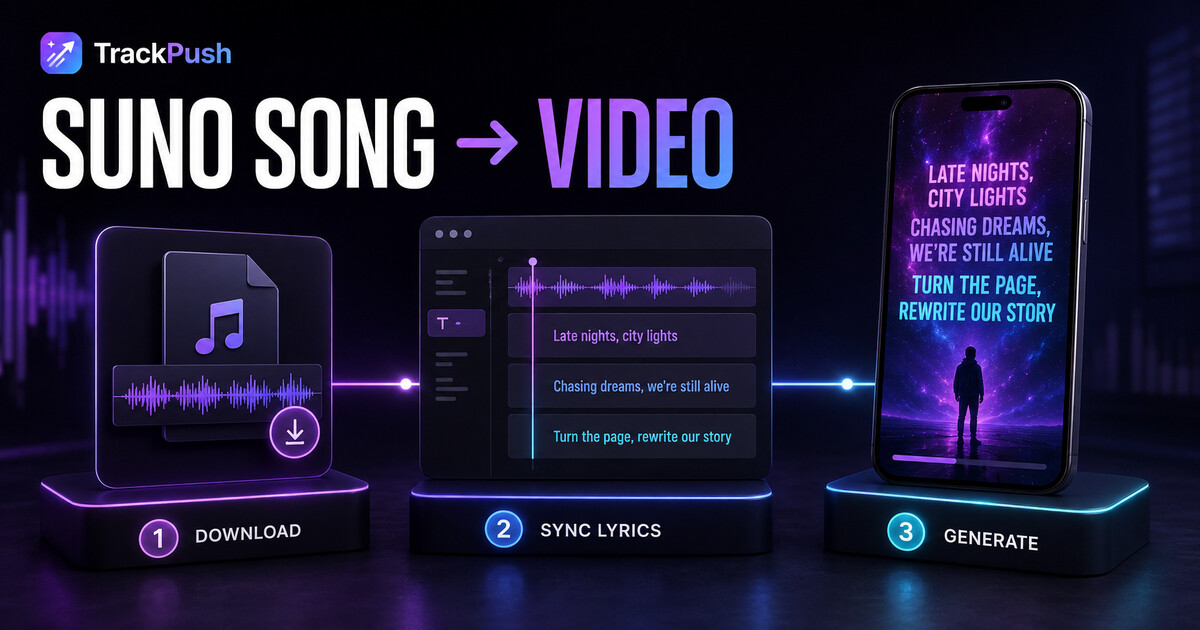
Making the song and promoting the song are two different jobs. Suno can help you reach a finished audio idea quickly, but TikTok, Instagram Reels, and YouTube Shorts still require a visual post.
This tutorial shows how to move from a song in your Suno Library to a synchronized vertical lyric video in TrackPush.
TrackPush is independent and is not affiliated with or endorsed by Suno. Only download and use audio, lyrics, artwork, and footage you have permission to use.
What you need before starting
Prepare:
- Your finished Suno song
- The lyrics you expect to hear
- A visual direction or a collection of short clips
- A TrackPush account
- Permission to use every part of the project
Listening to the final song once with the lyrics open will save time later. Note the strongest 10–30 second section and any words the singer pronounces unusually.
Step 1: download your song from Suno
Open the song in your Suno Library or Workspace. Use the three-dot menu and choose Download. Suno maintains an official guide to downloading songs if the interface changes.
Suno currently says Basic users can download an MP3. Pro and Premier users can download WAV files from the desktop website. A clean finished file generally gives transcription and rendering the best source material.
Do not download another creator's song merely because it has a public link. A share link is not a commercial license.
Step 2: decide whether you need one post or a campaign
If you need one announcement, start with the strongest self-contained lyric.
If you are planning a release campaign, identify at least three moments:
- The most memorable chorus line
- The most emotional verse line
- The strongest musical switch, drop, or vocal moment
Those moments can support multiple posts without forcing you to invent a new content concept every day.
For the larger strategy, read how to turn one Suno song into 10 social videos.
Step 3: choose a visual theme in TrackPush
Open TrackPush and either build a theme from your own clips or browse the public themes.
A strong theme has visual consistency. Ten clips of night driving usually work together better than ten unrelated viral clips. Think about:
- Color palette
- Lighting
- Camera movement
- Energy
- Subject matter
- Emotional tone
For a sad pop song, you might choose rain, windows, empty streets, and slow movement. For an electronic track, you might choose strobes, crowds, abstract patterns, and faster motion.
Step 4: upload the downloaded Suno audio
In the Generate workflow, select the theme and add your audio file. Preview the song and move to the section you want to use.
Do not assume the intro is the best social opening. A listener scrolling a feed has not chosen to hear the song. Start where the lyric, melody, or production creates the fastest reason to stay.
Step 5: enable the lyrics overlay
Turn on Add Lyrics Overlay. TrackPush transcribes the uploaded audio and groups the words into timed phrases.
Automatic transcription is a starting point. AI vocals can include:
- Long sustained vowels
- Stacked harmonies
- Quiet or breathy phrases
- Ad-libs behind the lead
- Invented words or names
- Deliberately altered pronunciation
Compare the transcript with the lyrics you intended. Correct misspellings and confirm which vocal line should be displayed.
Step 6: correct timing before styling
Fix timing before spending time on fonts and colors.
Play the preview and watch when each phrase appears. The viewer should see the lyric as the phrase begins—not after the line is almost finished.
If several lines are wrong, try a fresh transcription from the cleanest audio file. If only one or two lines are wrong, edit those phrases directly. The detailed caption-sync guide for Suno vocals covers both cases.
Step 7: style the captions for a phone screen
Use readable contrast and a size that works without zooming. A thin font over detailed footage may look elegant on a desktop preview but disappear on a phone.
Check:
- Font size
- Text weight
- Outline or shadow
- Highlight color
- Top, center, or bottom placement
- Distance from platform interface elements
The most important lyric should be readable even when the viewer is not holding the phone close.
Step 8: add a contextual hook if needed
Lyrics sometimes need one line of setup.
For example:
- "I asked Suno to turn my worst text into a chorus"
- "Should I release this version?"
- "The lyric I kept rewriting"
- "POV: you finally accept they are gone"
Keep the hook short. The hook should introduce the lyric, not compete with it.
Step 9: generate and inspect the export
Generate the video, then watch the full result before posting.
Look for:
- A strong first frame
- Accurate words
- Natural phrase timing
- Cuts that fit the energy
- No important text under platform buttons
- Consistent visual quality
If the visual sequence does not fit, generate another variation. TrackPush can reuse the same theme and song while changing how the clips are assembled.
Step 10: export more than one useful version
At minimum, make:
- One clean lyric-first version
- One version with a contextual hook
- One version using a different song section
That gives you three distinct tests rather than placing the entire release outcome on one edit.
The Suno lyric video maker guide explains the complete cluster workflow, while the TrackPush lyric video maker lets you begin generating.
Common mistakes
Posting the first generated transcript without checking it
A beautifully styled wrong lyric still feels wrong. Always review names, slang, repeated choruses, and layered vocals.
Starting with a slow intro
The full song may need the intro. The social post may not. Choose the section based on the post's job.
Using footage you do not have permission to publish
Use your own clips, licensed footage, or material whose terms allow your intended use. Public availability is not the same as permission.
Assuming Suno's free and paid plans grant identical rights
They do not. Suno says songs created on Basic are for non-commercial use, while songs made during a Pro or Premier subscription receive commercial-use rights. Review the Suno monetization guide before using a post commercially.
Frequently asked questions
Do I need to copy the lyrics from Suno?
TrackPush can transcribe the vocal from the audio, but keeping your intended lyrics nearby makes corrections faster.
Should I use MP3 or WAV?
Use the cleanest finished file available under your Suno plan. Suno currently reserves WAV downloads for Pro and Premier users on the desktop website, while Basic provides MP3.
Can I make the video entirely on my phone?
Yes. You can download the song, open TrackPush in a supported mobile browser, choose a theme, upload audio, review lyrics, and generate a vertical video. A desktop can be more comfortable for detailed transcript editing.
What if I have no video footage?
Browse TrackPush's public themes and choose a visual mood that supports the song.
From finished song to finished post
The workflow is simple: download the song you are allowed to use, choose the strongest moment, select a coherent visual theme, correct the transcription, and export a vertical video.
The quality comes from reviewing each step rather than accepting the first automatic result.
Open the TrackPush lyric video maker and turn your finished Suno audio into the first post.