Tutorials · 6 min read ·
How to Cut MP3 Songs Without Installing Software
Cut an MP3 on a phone, Chromebook or work laptop using only the browser. Covers accuracy, MP3 quality loss, and when WAV is the better export.
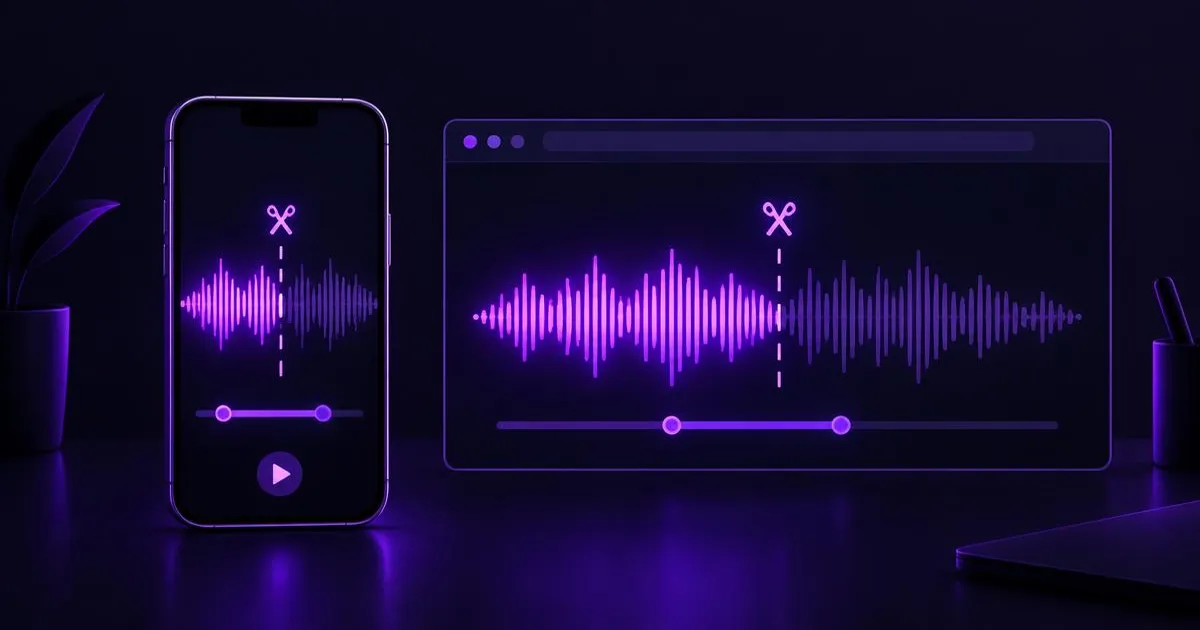
You don't need to install an audio editor to cut a song. A modern browser can open an MP3, show its waveform, cut it precisely and save a new file. That matters when you're on a phone, a Chromebook, a shared computer, or a work laptop where you can't install anything.
This guide covers how to do it, what happens to quality when you cut an MP3, and how to avoid the small problems that make cuts sound wrong.
Why browser-based cutting works now
Browsers include the Web Audio API, which can decode audio files and work with the raw sound data. A browser tool can do the same basic job as a desktop editor's trim function without sending your file to a server.
The TrackPush Audio Trimmer works this way. The song is decoded, cut and re-encoded on your device. There's no signup and it doesn't use credits.
How to cut an MP3 in your browser
- Open the trimmer at trackpush.app/tools/audio-trimmer on your phone or computer.
- Select your MP3. On a phone, this opens your Files app. On desktop you can also drag the file onto the page.
- Set the start and end. Drag the handles on the waveform, or type exact times in the format minutes:seconds.milliseconds (for example
1:02.500). - Optionally add fades. A short fade in or out hides clicks and abrupt endings.
- Preview the selection. The preview plays the exact clip you'll download, fades included.
- Download as MP3 or WAV.
The handles are built for touch: they have large grab areas, and the page doesn't scroll while you drag them. On a laptop, select a handle and use the arrow keys for small adjustments.
Does cutting an MP3 reduce quality?
MP3 is a lossy format. Some audio detail is thrown away when an MP3 is created, and more is lost each time it's encoded again. The trimmer has to decode your MP3 and encode a new file, so:
- Exporting MP3 again at 192 kbps re-encodes it. A single extra pass is rarely noticeable on a phone speaker or in a social video, but it isn't a perfect copy.
- Exporting WAV stores the decoded audio without further compression. The file is much bigger, but nothing more is lost. Choose WAV if you plan to edit, mix or master the clip further.
Rule of thumb: export MP3 for sharing and posting, export WAV for anything that will go back into a project.
Why an MP3 clip can be a few milliseconds longer
MP3 files are built from small frames, and encoders add a little padding at the start and end. Some players show this as a few milliseconds of extra silence. If you need sample-accurate timing, for example to line a clip up in a DAW, use WAV.
Sample rate and stereo
WAV exports from the TrackPush trimmer keep the channel count and sample rate the browser reports for your file. MP3 exports keep mono as mono and stereo as stereo. MP3 only supports standard sample rates up to 48 kHz, so files at higher rates such as 96 kHz export as WAV.
Phone tips
- Close other heavy apps if the song is long. The browser needs memory to hold the decoded audio. The trimmer accepts up to 50 MB and 10 minutes on mobile.
- Find your download. On iPhone, downloads usually go to Files → Downloads. On Android, check the Downloads folder or your browser's download list.
- M4A from voice memos may or may not open depending on the browser. If it doesn't, try another browser or convert it to MP3.
When you should use desktop software instead
A browser trimmer cuts one continuous section. You'll need a full editor (DAW) to:
- Remove a section from the middle and join the rest together
- Mix multiple tracks or add effects other than fades
- Work with very long recordings beyond the tool's size and length limits
What to do with the cut
If you're cutting a song to promote it, the clip is just the start. You can choose a strong hook, then use TrackPush to turn it into captioned vertical videos with a lyric video maker or one of the visual themes.